Login page
A proxy host can show a Corvus login page before the site opens. Use it for apps that have no login of their own or should not face the internet openly: a photo album for the family, an internal tool, a staging site, a dashboard.
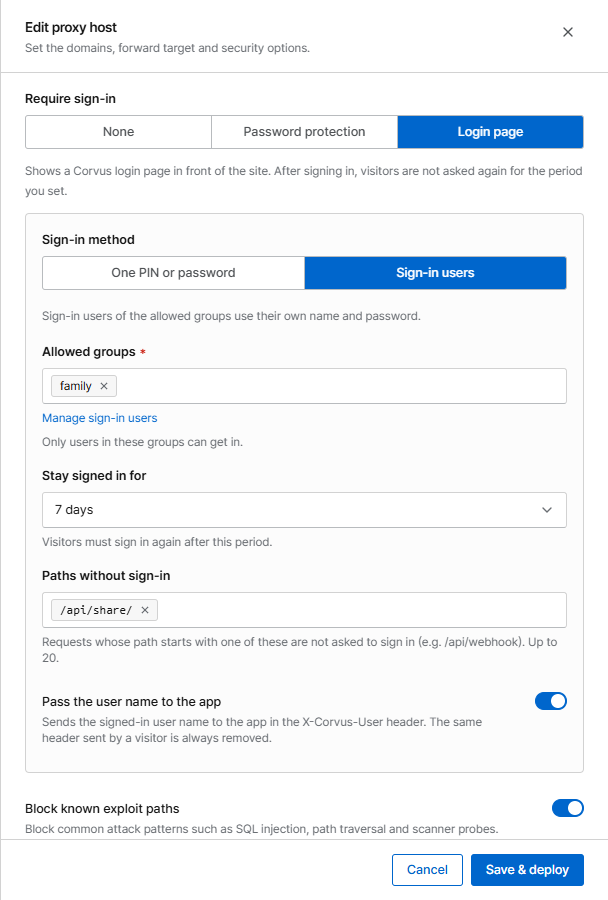
Choose how to protect a host
In the proxy host form, section Protection, Require sign-in has three choices:
| Choice | What visitors get | Good for |
|---|---|---|
| None | The site opens for anyone | Public sites |
| Password protection | The browser's own user name and password box (HTTP Basic auth) | Scripts and tools that send Basic auth; quick protection |
| Login page | A Corvus login page; after signing in they are not asked again for the period you set | People using a browser, also on phones |
A host has either password protection or a login page, not both.
The login page has two Sign-in methods:
| Method | Use when |
|---|---|
| One PIN or password | A few people share one secret, for example the family. No accounts to manage, but you can't tell who signed in or lock out one person: changing the PIN signs everyone out |
| Sign-in users | Each person has their own name and password, optionally with two-step verification. You can see who signed in, sign out or disable one person, and allow different groups on different hosts |
Set up a login page with a PIN
- Edit the proxy host and go to Protection.
- Set Require sign-in to Login page and Sign-in method to One PIN or password.
- Enter the PIN or password (at least 4 characters). It can't be shown again after saving; the form shows Set with a Change button. Leave it blank when editing to keep the current PIN.
- Choose Stay signed in for (1 hour to 30 days, default 7 days) and click Save & deploy.
Changing the PIN signs out everyone who signed in with the old one.
Set up sign-in users
Sign-in users are separate from the console's users: they can open the sites you allow, nothing else, and they can't sign in to the console. Operators and administrators manage them; viewers see the lists read-only.
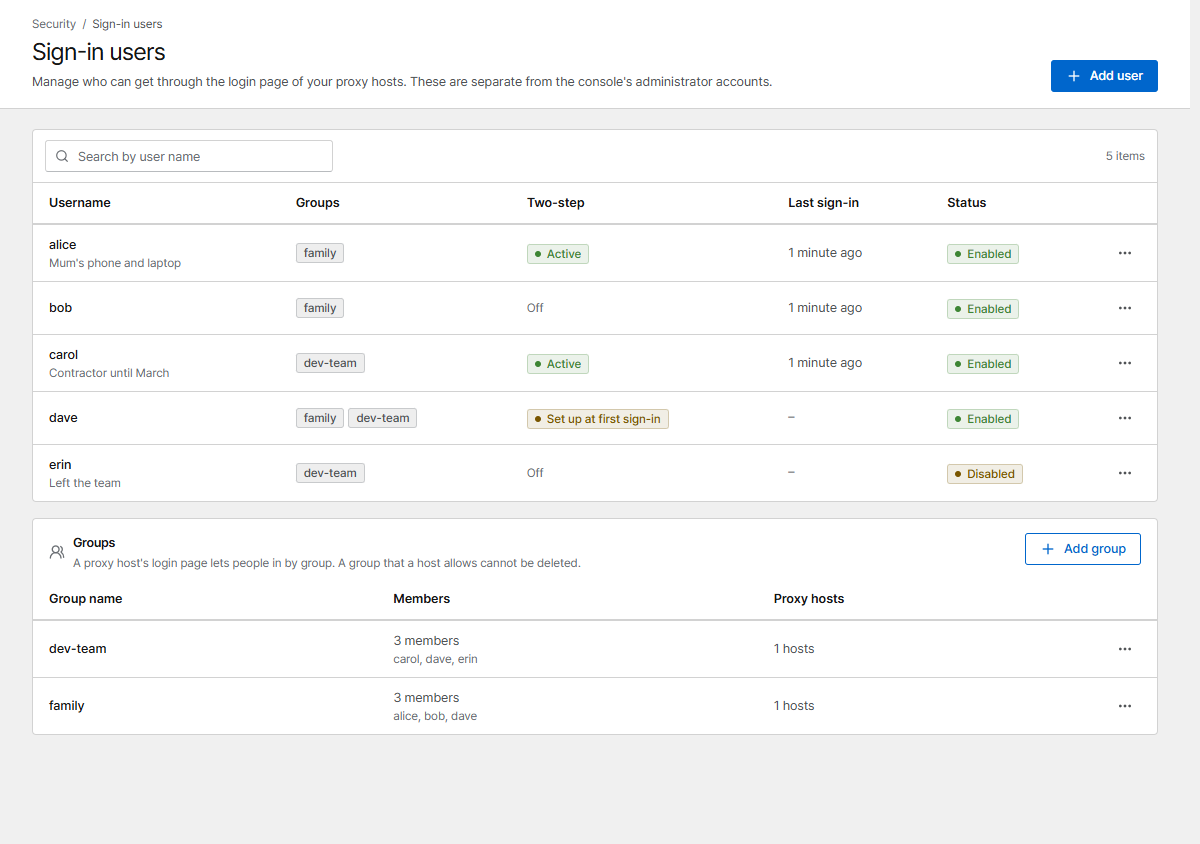
- Open Sign-in users (under Security in the menu).
- Under Groups, click Add group, for example
familyordev-team. - Under Users, click Add user: a user name (lower-case letters, digits and
. _ @ -; not case-sensitive), a password (at least 8 characters; Generate makes one) and the groups. Turn on Require two-step verification if wanted. - Edit the proxy host. In Protection, set Require sign-in to Login page, Sign-in method to Sign-in users and pick the Allowed groups.
- Save & deploy. Give each person their user name and password.
Only users in an allowed group get in; a group is allowed per host, so one user can reach some sites and not others. A group that a host allows can't be deleted. The hosts list shows Login · users or Login · PIN for hosts with a login page.
Two-step verification
With Require two-step verification, the user sets up an authenticator app (Google Authenticator, 1Password, Aegis …) themselves at their first sign-in: after the password the login page shows a QR code and the key to type in by hand, and asks for a 6-digit code to confirm. From then on they enter a code after the password. Administrators never see the QR code or the key.
The Two-step column shows Active or Set up at first sign-in. If a user loses their phone, Reset two-step verification removes the old authenticator and signs them out; they set up a new one at the next sign-in. There are no recovery codes.
Paths without sign-in
Paths without sign-in lists path prefixes that are let through without a session, up to 20. Use it for parts of the app that browsers don't open:
- webhooks (
/api/webhook,/hooks/), - an API used by a mobile app or a sync client with its own login,
- a public share link path, a health check.
A prefix matches the start of the path as text: /api/ matches /api/v1/items, while /api also
matches /apikeys, so end a folder with /. Paths that hide /, \ or . behind percent-encoding
(%2F, %5C, %2E) are not let through. / itself and /__corvus are not allowed. Bans,
security rules and the other protection still apply to these paths. An
allow rule with Also skip Basic auth skips the login page too, for
example for your home network.
Pass the user name to the app
With sign-in users, Pass the user name to the app sends the signed-in user name to your app in
the X-Corvus-User header. Apps that trust a header from a reverse proxy can use it to sign the user
in (look for "header authentication" or "trusted header" in the app's settings). An
X-Corvus-User header sent by a visitor is always removed, also on hosts without a login page, so the
app can rely on it as long as it is reachable only through Corvus.
The session cookie (__corvus_login) is not passed to the app.
Sessions
- A sign-in lasts for Stay signed in for; then the visitor signs in again.
- A session belongs to one host. Signing in on
photos.example.comdoesn't sign you in onwiki.example.com. - It isn't bound to the visitor's IP address, so a phone that moves between Wi-Fi and mobile data stays signed in.
- To sign out, open
/__corvus/loginon the site and click Sign out.
A user's sessions end at once when you:
- disable or delete the user, or set a new password,
- click Sign out everywhere, or Reset two-step verification,
- remove the user from the host's allowed groups (or remove the group from the host),
- change the host's PIN (PIN mode).
What visitors and apps get
Without a valid session, a browser opening a page (GET or HEAD that accepts HTML) is redirected
to /__corvus/login and back to the page after signing in. Every other request, for example an API
call from JavaScript, gets 401 with {"error":"login_required"}. Single-page apps that call their
API in the background therefore need a reload to show the login page when the session runs out.
The login page is shown in the visitor's browser language (the 8 console languages), in light and dark, and works without JavaScript.
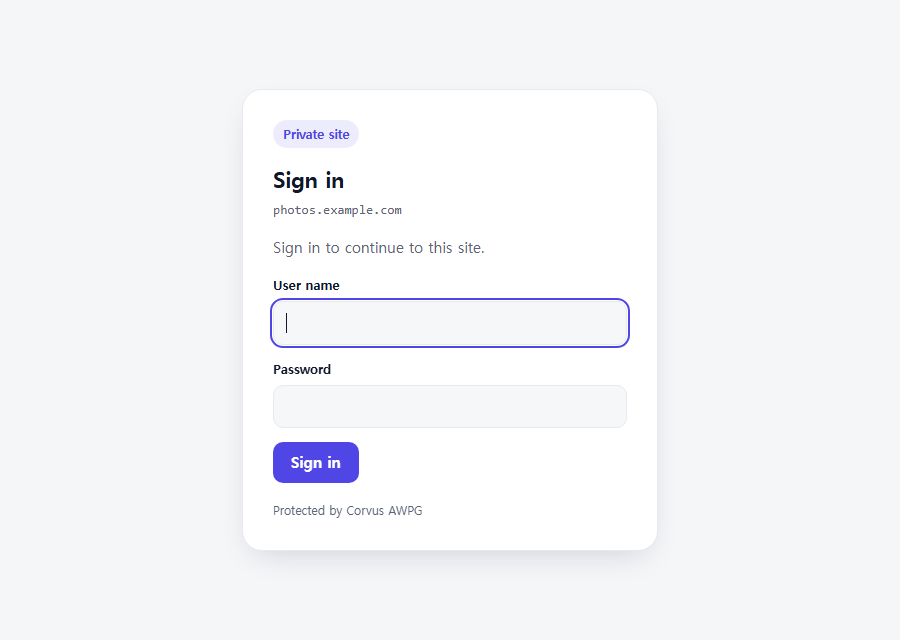
Failed sign-ins
- Sign-ins are limited per visitor address and per user name: after 10 failures, the page asks the visitor to wait. Wrong user names, wrong passwords, users in other groups and disabled users all get the same message.
- Failed sign-ins count as detections for automatic bans and the Repeated attack source alert, like attack patterns do.
- In Traffic → Events they show as Sign-in failed, next to Signed in, Sent to the login page and Sign-in attempts limited.
Limits
- Use HTTPS. Without a certificate the PIN or password travels unencrypted; the form warns about it. Attach a certificate and turn on Force HTTPS.
- Not single sign-on. Sign-in users live in Corvus. There is no OpenID Connect, LDAP or forward-auth to an identity provider, and each host is signed in to separately. If you need SSO across apps, use Authelia, Authentik or Pangolin.
- Users can't change or reset their own password; an operator sets a new one in the console.
- Signing in needs the control plane (
corvus-control). If it is down, visitors who are signed in keep working, but nobody new can sign in until it is back. - For APIs and other non-browser clients use Paths without sign-in (and the app's own authentication), or Password protection instead.
Through the HTTP API, the host field is login, and sign-in users and groups
are under /api/signin-users and /api/signin-groups.