Proxy hosts
A proxy host forwards requests for one or more domains to a service (the forward target) and applies TLS and protection on the way. For a step-by-step first setup see Your first proxy host.
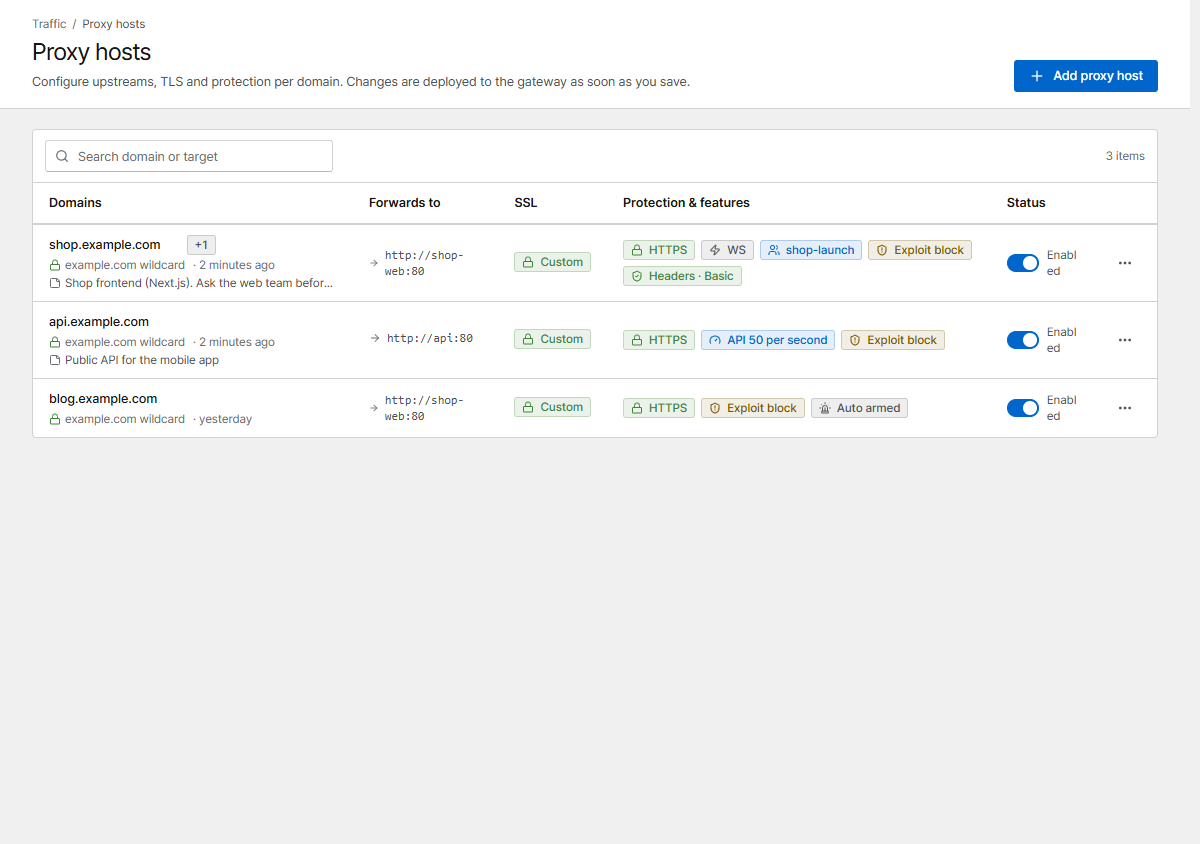
The list shows each host's target, certificate and the features that are on (HTTPS, WebSocket, access queue, rate limit, exploit blocking, security headers …). A host that serves a page shows the page instead of a target, for example Page: Maintenance (503). The switch in Status turns a host off without deleting it.
The form, section by section
Domains
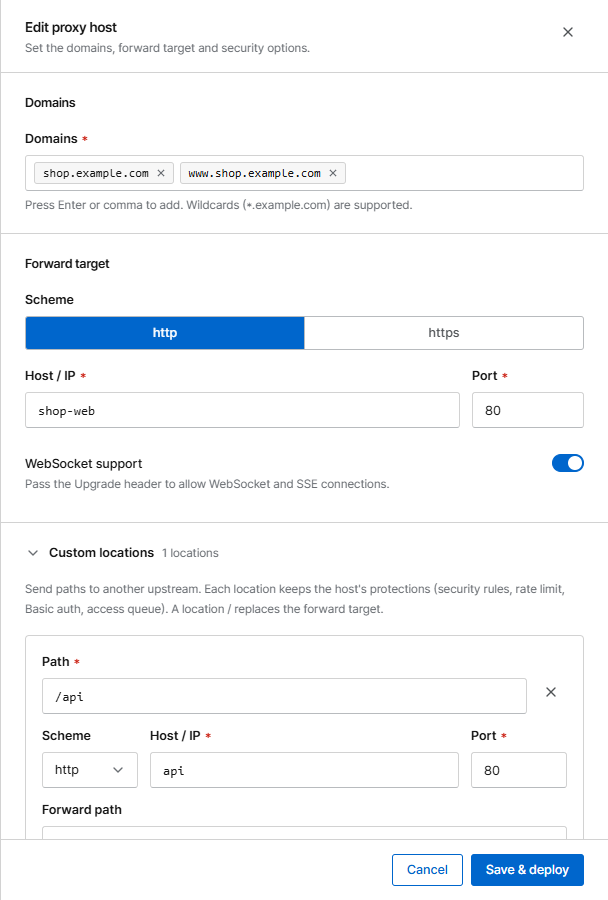
Type a domain and press Enter or a comma. Wildcards such as *.example.com work. A domain can
belong to only one proxy or redirection host.
Forward target
Scheme, Host / IP and Port of your service. WebSocket support is on for new hosts: the upgrade is forwarded only when a client asks for a WebSocket, so other apps are unaffected. With it on and no upstream timeout set, the timeout is 1 hour, so idle WebSocket connections and server-sent events (SSE) stay open.
Forward targets
| Target | Example | Notes |
|---|---|---|
| Another container | shop-web port 80 |
Corvus must share a Docker network with it: add that network to the corvus service |
| A private or public IP | 10.3.2.39 port 8084 |
|
| A service on the Docker host | 127.0.0.1 or localhost |
Inside the container these mean the Docker host, like in NPM; no host.docker.internal needed. The service must listen on an address the container can reach (0.0.0.0 or the Docker bridge), and the host firewall must allow Docker networks |
To reach services that listen only on the host's 127.0.0.1, run Corvus with
host networking.
Check connection
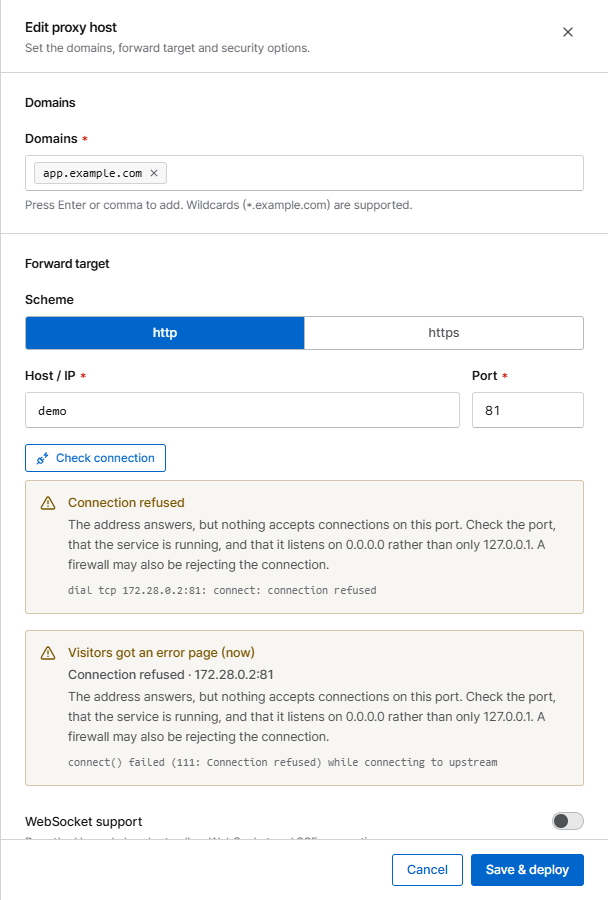
Check connection under the host and port tries the target the way the gateway reaches it, before you save:
- the forward host is mapped like in the gateway configuration (
127.0.0.1/localhost→ the Docker host, names fromextra_hosts//etc/hosts→ their address); - names are looked up with the gateway's DNS resolver as full names, without search domains, so
a short name such as
nasfails here exactly as it would for visitors; - a TCP connection is opened (5 second limit), and for https a TLS handshake is made with the forward host as SNI. Certificates are not verified, as the gateway does not verify them either;
- a name with several addresses is tried on each of them (up to 8), since the gateway spreads requests over all of them: the check fails if one fails, and names that address;
- a host with several backends has each of them checked at once, with the result per backend (one check against the limit below).
The result is either reached with the address and time, or the reason with a hint:
| Result | Usual fix |
|---|---|
| Name does not resolve | Use the full DNS name (nas.home.lan) or the IP address, or add the name to extra_hosts |
| Connection refused | Check the port and that the service runs and listens on 0.0.0.0, not only 127.0.0.1 |
| No answer (timed out) | Allow the gateway server in the target server's firewall; check the address |
| Network unreachable | Check the address; a Docker network may overlap your network |
| TLS handshake failed | The port speaks plain HTTP: use the http scheme or the service's HTTPS port (also shown when the port accepts the connection but never answers the handshake) |
Custom locations have the same button. Operators and administrators can use it, up to 20 checks a minute per user.
Upstream errors in the list
When the gateway could not reach a host's service, for example after the service was stopped, the list shows Upstream error next to the domain. Hover it for the reason (as above), the address the gateway tried and when it happened; the host's form shows the same with nginx's message. The warning disappears 15 minutes after the last failed request, or as soon as a saved change is deployed. It comes from the gateway's error log, so it shows what visitors actually got (502 or 504).
For a host with several backends the warning reads Backend error and names the backend that failed: the gateway retried the request on another backend, so visitors were normally still served. Only when no backend was left to try does it say All backends failing, which means visitors got the error page.
Several backends (round-robin)
A proxy host can forward to several copies of the same service, for example an app running on
several servers that keeps its sessions in a shared store (Redis, a database). Under the first
host and port, Add backend adds another host and port; up to 32 backends per host. The scheme
(http/https) is the same for all of them, and each backend follows the same rules as the first
one (the forward targets above, no duplicates).
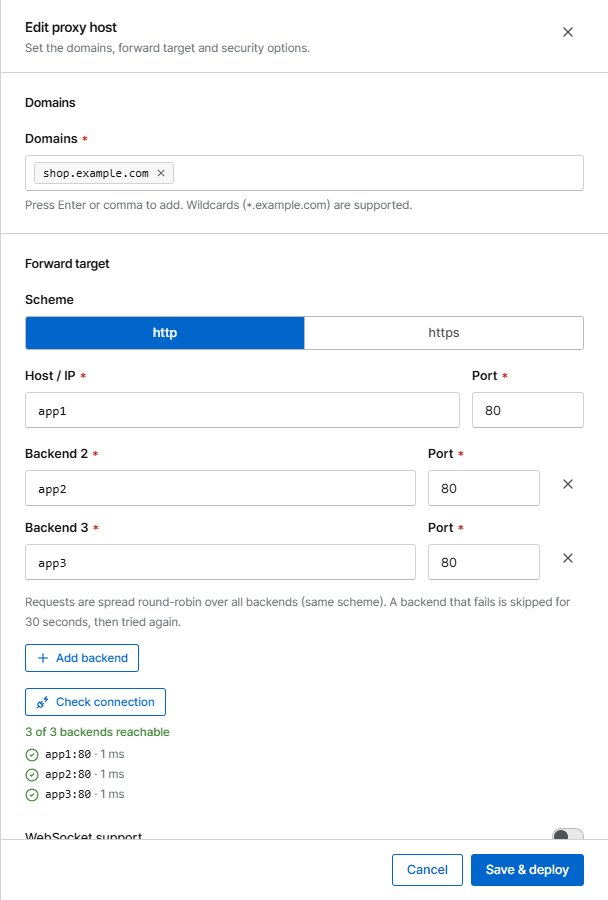
- Round-robin: requests are spread over the backends in turn. Keep-alive connections are kept per backend.
- Passive failover: when a backend refuses the connection or times out, the request is sent to
the next backend. A backend that fails 3 times within 30 seconds is skipped for 30 seconds, then
tried again with real requests. A
POST,PATCHorLOCKrequest that already reached a backend is never repeated on another one (it might have been processed): that request gets the error page. - With https, the first backend's host name is sent as SNI to all backends.
- A host with a single target behaves exactly as before: every request goes to it, without failure tracking.
Deliberately not included, to keep the feature small: active health checks (backends are judged by
real requests only), weights, sticky sessions (keep sessions in a shared store instead) and other
balancing methods. Custom locations and streams keep a single
target. A backend that does not answer at all (rather than refusing the connection, for example a
stopped server) delays a request by the pool's connection timeout of 3 seconds (instead of the
usual 10) before the next backend is tried, until the backend is skipped. A
proxy_connect_timeout in the host's advanced configuration replaces these 3 seconds.
The list shows N backends next to the forward target; hover it for the addresses. Through the
API, forward_host/forward_port stay the first backend and
extra_targets lists the others; clients that do not send extra_targets keep working unchanged.
Serve a page instead of a backend
When a domain has no service yet, or its service is down for maintenance, choose Serve a page instead of Forward to a service at the top of the forward target section. The gateway then answers with a page itself: no forward host is needed, and Check connection is not shown.
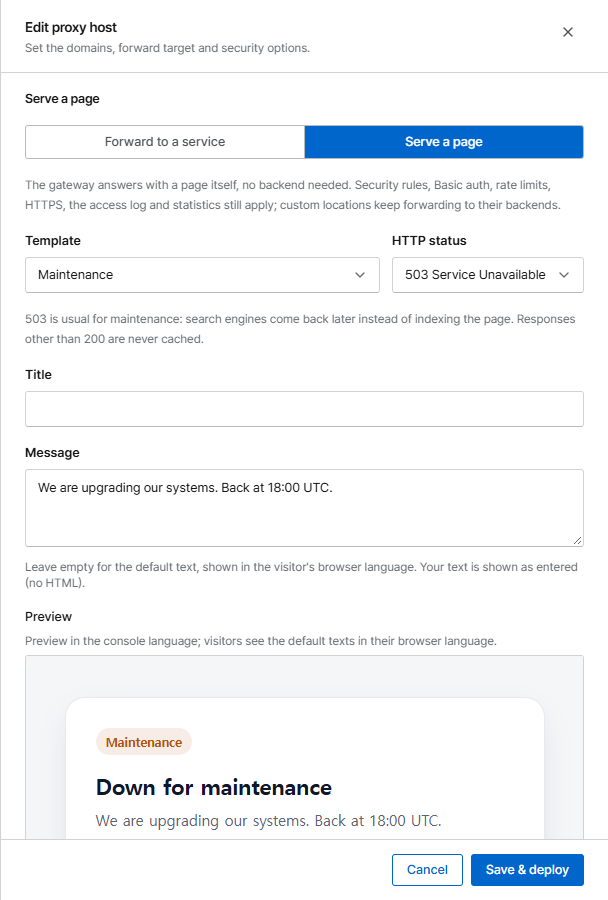
| Template | Shows | Default status |
|---|---|---|
| Coming soon | "Coming soon" with a short text | 200 |
| Maintenance | "Down for maintenance" with a short text | 503 |
| Parked domain | "This domain is parked" | 200 |
| Custom HTML | Your own page, sent exactly as entered (up to 256 KB) | 200 |
- HTTP status: 200, 404, 410 or 503. 503 is the usual answer while a site is down for
maintenance: search engines come back later instead of indexing the page. Answers other than 200
carry
Cache-Control: no-store, so browsers and CDNs do not keep the page once the host forwards again. NoRetry-Afterheader is sent. - Title and Message (built-in templates): leave them empty for the default text, which the page shows in the visitor's browser language (the 8 console languages). Your own text is shown as entered, as plain text: HTML is escaped, line breaks are kept. The built-in pages also show the host name and look like the gateway's block and error pages, in light and dark.
- Custom HTML: put images (
data:URLs) and CSS into the page or load them from another site; the host serves only this one page. Nothing in it is replaced ({{HOST}}stays as written). - The preview in the form is rendered by the control plane with the same template, in the console language.
- The page answers every path and method (
GET /anything,POST /form…);HEADgets the headers only. - Everything else applies as for a host that forwards: security rules, bans, attack-pattern blocking, "under attack" mode, rate limit, Basic auth or the login page, the access queue, Force HTTPS and HSTS, security headers, the access log and traffic statistics.
- Custom locations keep forwarding, for example a maintenance page at
/while/apistill reaches the backend. A location/is not allowed on a host that serves a page (it would replace the page), nor alocation /in its advanced configuration. - Switching back to Forward to a service keeps the page (and a host that serves a page keeps a forward target entered before), so you can switch back and forth.
Through the API the host has content (forward or page) and page;
clients that do not send them keep working unchanged.
Custom locations
Send paths such as /api to another service. See Custom locations.
In the list, a host with custom locations shows N locations next to its target; hover the badge or move the keyboard focus to it to see each path with its target. The list search also finds a host by a location's path or forward host.
TLS
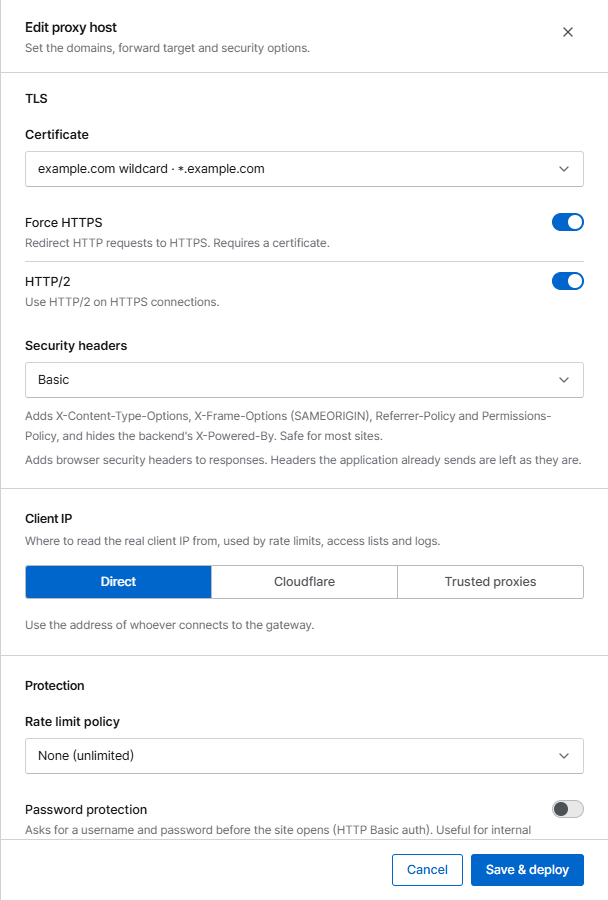
- Certificate: an existing certificate, Request a new certificate (Let's Encrypt), or None (HTTP only). See Certificates.
- Force HTTPS redirects HTTP to HTTPS and sends
Strict-Transport-Security. - HTTP/2 on HTTPS connections.
Client IP
Where the real visitor IP comes from. It is used by rules, bans, rate limits and logs.
| Option | Use when |
|---|---|
| Direct | Visitors connect straight to Corvus (default) |
| Cloudflare | The site is behind Cloudflare. CF-Connecting-IP is trusted only from Cloudflare's official ranges |
| Trusted proxies | Another proxy or load balancer is in front. Set its ranges and header on the Network page |
Warning
A wrong trusted-proxy setting lets clients fake their IP and get around rate limits and bans.
Behind a TCP tunnel or load balancer (PROXY protocol)
A TCP tunnel or load balancer (FRP, HAProxy, a cloud load balancer) passes the connection through without reading it, so Corvus sees the tunnel's address for every visitor. Most of them can send the visitor's address in a PROXY protocol header (v1 or v2) at the start of the connection. Corvus accepts that header on two extra ports:
- On the Network page, in the PROXY protocol card, enter the address the tunnel connects
from in Trusted PROXY protocol sources. The header is used only on connections from there.
This is a separate list: don't add the tunnel to Trusted proxies, which are trusted for
X-Forwarded-For(see below). Streams use the same list. - In the same card, turn on Accept PROXY protocol. The ports default to 8080 (HTTP) and 8443 (HTTPS); they can't be Corvus's own ports or a stream's port, and the switch can't be turned on with an empty trusted list.
-
Publish the ports in
docker-compose.yml. When the tunnel runs on the same host, publish them on loopback only:ports: - '80:80' - '443:443' - '9443:9443' - '127.0.0.1:8080:8080' # PROXY protocol, HTTP - '127.0.0.1:8443:8443' # PROXY protocol, HTTPSWhen the tunnel or load balancer is on another machine, publish them without
127.0.0.1:and let a firewall allow only that machine's address to reach them. -
Point the tunnel at these ports with the PROXY protocol turned on.
Ports 80 and 443 stay as they are: visitors on your network and the tunnel can use Corvus side by side. (A port that expects the header refuses connections without one, so the extra ports should be used by the tunnel only.)
Which address to trust. Enter the address Corvus sees the tunnel connect from:
- frpc (or HAProxy) in a container on a Docker network shared with Corvus, connecting to the Corvus container by name: that container's address, or the network's subnet if it changes. The ports don't need to be published at all in this case.
- frpc on the host, ports published on
127.0.0.1as above: the Docker bridge gateway (e.g.172.18.0.1, shown as the client address on the Traffic page before you add it). - A load balancer on another machine: its address.
Don't trust the Docker gateway unless the ports are on loopback
With ports published on all addresses, Docker often makes outside connections appear to come from the bridge gateway (its userland proxy, IPv6 without ip6tables, Docker Desktop, rootless Docker). Trusting the gateway then lets anyone who reaches the port set their own address.
frpc.toml on the machine next to Corvus (frp 0.52 or later):
[[proxies]]
name = "corvus-https"
type = "tcp"
localIP = "127.0.0.1"      # the Corvus host (or the Corvus container's name)
localPort = 8443
remotePort = 443
transport.proxyProtocolVersion = "v2"

[[proxies]]
name = "corvus-http"
type = "tcp"
localIP = "127.0.0.1"
localPort = 8080
remotePort = 80
transport.proxyProtocolVersion = "v2"
TLS still ends at Corvus, so certificates (including Let's Encrypt HTTP-01 through the HTTP port) work as usual.
The address from the header is used by hosts set to Direct, by redirection hosts and for
unknown hosts. Hosts set to Cloudflare or Trusted proxies keep reading the address from
their header with their own rules, also when reached through the tunnel. Don't add the tunnel to
Trusted proxies for them unless the tunnel sets X-Forwarded-For itself: the tunnel passes on
whatever the visitor sent, so trusting it would let visitors choose their own address. With
Cloudflare in front of the tunnel, set the host to Trusted proxies with the CF-Connecting-IP
header and add the tunnel to Trusted proxies only when the tunnel's public ports accept nothing
but Cloudflare's addresses (a firewall on the tunnel server).
Advanced configuration with real IP directives
While the PROXY protocol is on, Corvus sets set_real_ip_from and real_ip_header for all
servers. An advanced configuration that sets only one of them (only real_ip_header, or only
set_real_ip_from) is combined with the other one from Corvus. Set both, or neither.
Note
Streams accept the PROXY protocol per stream, with the same trusted sources; this switch is not needed for them.
Protection
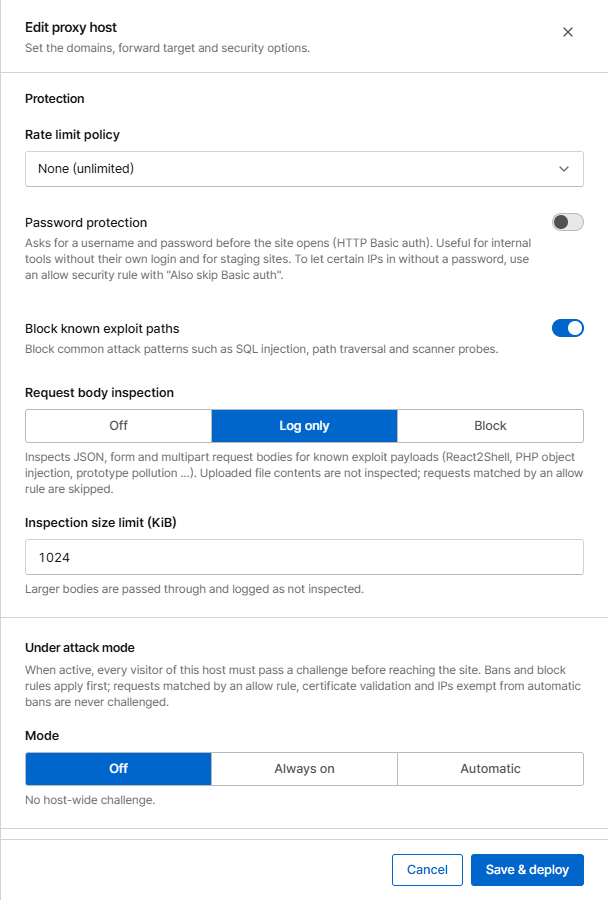
| Option | What it does |
|---|---|
| Rate limit policy | Limits requests per IP. See Bans & rate limits |
| Require sign-in | None; Password protection: asks for a username and password before the site opens (HTTP Basic auth), good for staging sites and internal tools; or Login page: a Corvus login page with one PIN or password, or with sign-in users and optional two-step verification. See Login page |
| Block known exploit paths | Blocks common attack patterns: SQL injection, path traversal, scanner probes. On by default |
| Request body inspection | Checks JSON, form and multipart bodies for known exploit payloads: Off, Log only or Block. In Block mode, bodies that cannot be fully inspected (compressed, malformed multipart, a body declared as JSON that is not valid JSON, a charset other than UTF-8 or another ASCII-compatible one, too many fields) are refused too. Bodies above the inspection size limit pass and are logged as not inspected |
| Under attack mode | Makes every visitor pass a browser challenge. See Challenge & under attack |
| Security headers | Adds browser security headers (Basic or Strict). Headers your app already sends are never replaced |
Access queue
Attach an access queue and choose the Protected path (usually /).
Advanced
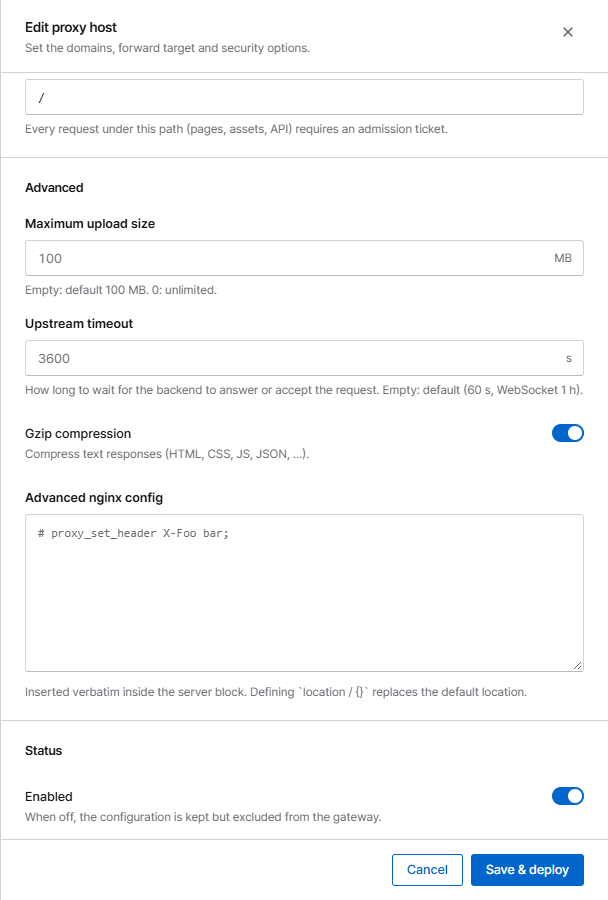
| Option | Default | Meaning |
|---|---|---|
| Max upload size | 100 MB | Largest request body. 0 = unlimited. Larger uploads get 413 |
| Upstream timeout | 60 s (1 h with WebSocket) | How long Corvus waits for your service to answer. Empty: 60 s, or 1 h for WebSocket hosts; a value you set applies as is |
| Gzip compression | On | Compresses text responses (HTML, CSS, JS, JSON …). Responses that are already compressed pass unchanged |
| Advanced nginx config | empty | Nginx directives inserted into the host's server block (administrators only). Directives that run code or make the gateway write files it names are refused (*_by_lua*, include, proxy_store, *_temp_path, …); access_log and error_log may write to off, stderr, syslog: or a *.log file |
Notes
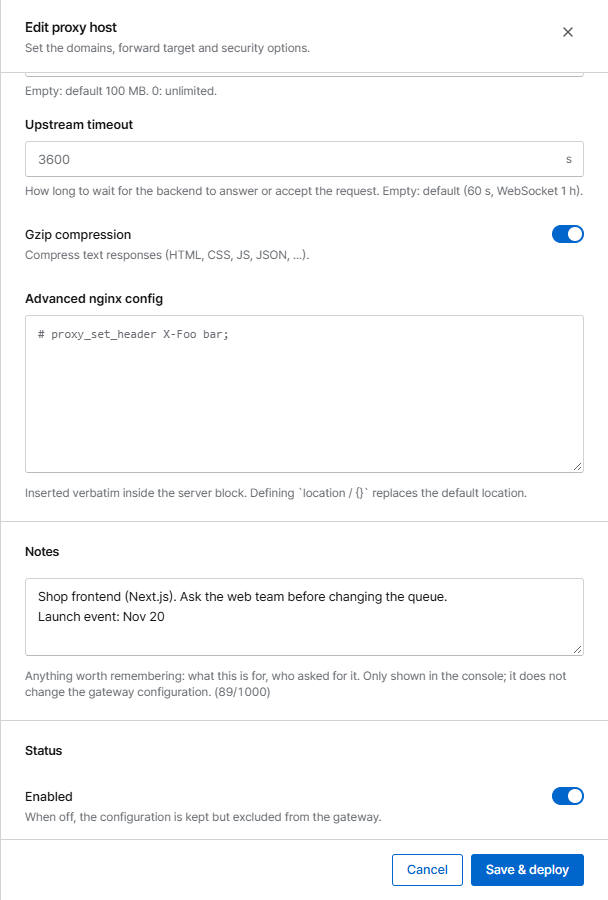
Optional free text, up to 1000 characters: what the host is for, who asked for it, why it has a special rule. The first line is shown under the domain in the list, and the search box also searches notes. Notes are only shown in the console; they don't change the gateway configuration.
Status
When Enabled is off, the host's settings are kept but it is removed from the gateway.
If you opened the console through a proxy host (for example https://corvus.example.com), that
host is marked Console in the list. Editing it shows a reminder, and disabling or deleting it
asks for confirmation first, because the console would no longer be reachable at that address. Port
9443 of the server (https://server-ip:9443) keeps working either way.
How changes are applied
Save & deploy creates a new configuration version, tests it with openresty -t and applies it
without dropping connections. If the test fails, nothing changes and the error is shown. Every
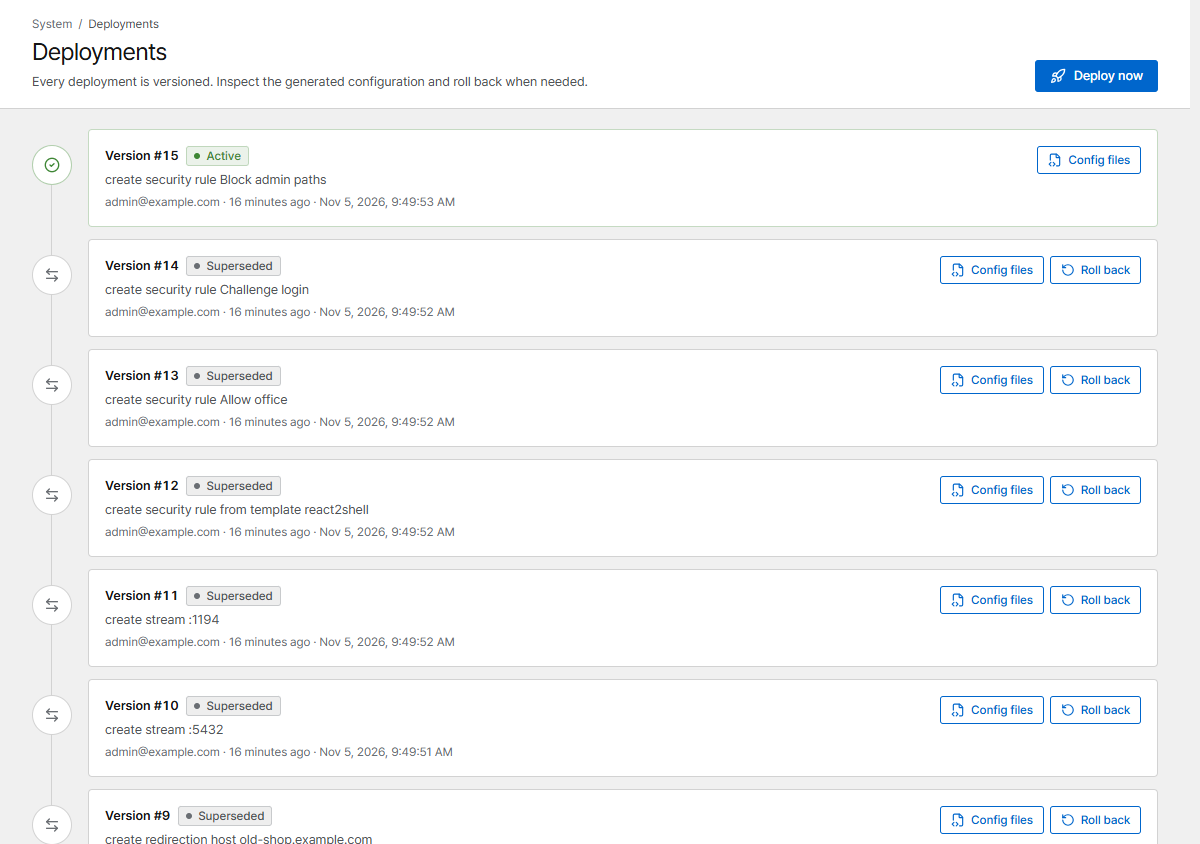
version is listed under Deployments, where you can inspect the generated files and roll back.